PDF Splitter Tool: Complete Guide to Online PDF Splitter
What is a PDF Splitter Tool and Its Core Functions?
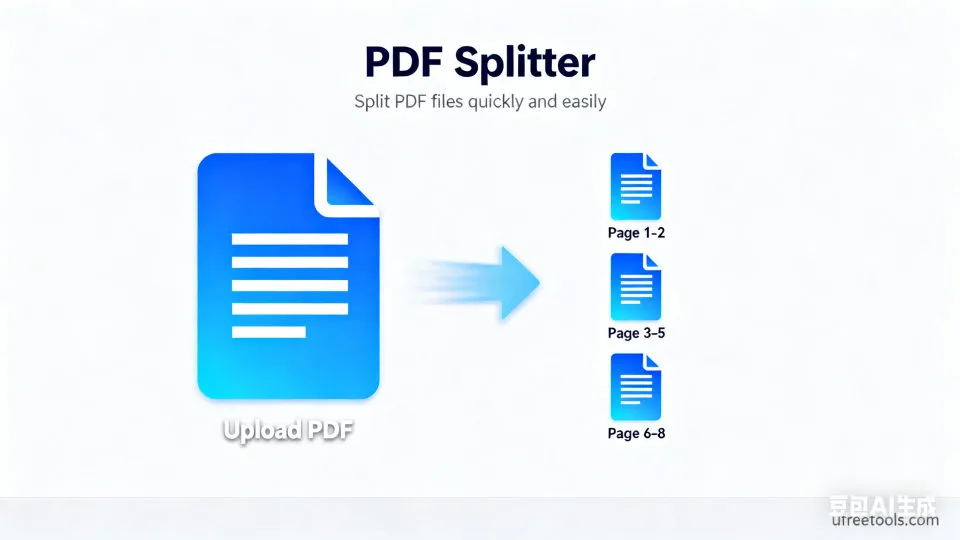
Our PDF Splitter Tool is a powerful online application specifically designed to split large PDF documents into multiple smaller files. This online PDF splitter supports multiple splitting modes, including intelligent splitting by page range, bookmark structure, page size, and blank page auto-detection. Users can precisely control the content of each split segment, achieving efficient document management and distribution. Our tool runs entirely in the browser, requiring no software installation, ensuring your document security and privacy protection.
Practical Application Scenarios of PDF Splitter Tool
- Split large reports by chapters for team collaboration and distribution
- Extract specific pages from contract documents, such as signature pages or clause pages
- Split e-books by chapters for easy reading and management
- Separate different forms or documents from scanned documents
- Split presentation documents by topic for different presentation occasions
- Extract charts and references sections from academic papers
- Split invoice batch documents into individual invoice files
- Extract specific product instruction pages from product manuals
Professional Tip:
When using page range splitting, it is recommended to preview the PDF document first to determine the accurate page numbers. For PDFs containing bookmarks, choosing to split by bookmarks can automatically identify the chapter structure, greatly improving splitting efficiency.
PDF document splitting is an important need in modern office and academic work. Our online PDF splitter tool helps users efficiently manage large documents by providing multiple intelligent splitting modes. Whether splitting by precise page range or automatically by bookmark structure, it can meet the needs of different scenarios. The tool supports batch processing and high-quality output, ensuring that split documents maintain their original format and clarity.
Frequently Asked Questions
How to use the page range function to precisely split PDFs?
How does the split by bookmarks function work?
What is split by page size, and what scenarios is it suitable for?
How does blank page detection splitting improve document processing efficiency?
Will the quality of split PDF files be affected?
How to Use PDF Splitter Tool
Upload PDF Files
First, upload the PDF files you need to split. You can directly drag files to the upload area via drag and drop, or click the upload button to select files. The tool also supports importing PDF files directly from URLs, making it convenient to process documents on the web.
Supports uploading multiple PDF files simultaneously for batch processing. Each file will display detailed information including file size and page count.
Select Split Mode
Choose the appropriate split mode according to your needs. Split by page range is suitable for precise control; split by bookmarks is suitable for structured documents; split by page size is suitable for mixed-format documents; split by blank pages is suitable for scanned documents.
Different split modes are suitable for different types of documents. Choosing the correct mode can greatly improve splitting efficiency.
Set Split Parameters
If you choose to split by page range, specify the pages to extract in the page range input box. Supports multiple formats: single page (5), range (1-10), multiple ranges (1-5,8,10-15). The system will validate the input in real-time.
Page numbering starts from 1. You can refer to the total page count displayed in file information to determine the range.
Preview Document Content
After uploading, the system will automatically generate thumbnail previews of the PDF, helping you confirm document content and page order. The preview function allows you to visually see the content of each page, ensuring the accuracy of split settings.
Thumbnail preview helps you better understand the document structure, especially useful when setting page ranges.
Adjust Output Settings
In the output settings area, you can adjust resolution (72-300 DPI) and image quality parameters. These settings mainly affect preview display effects, while the actual split PDF files will maintain original quality.
Higher resolution settings will provide clearer preview effects but may increase processing time.
Execute Split and Download
Click the "Start Splitting" button to execute the split operation. After processing is complete, the split results will be displayed in the right output area, with each split file containing preview and download options. You can download each file individually, or use the batch download function to package all files into a ZIP.
All processing is completed in your browser, ensuring document security. Split files will maintain all formats and properties of the original PDF.
Congratulations!
You have successfully mastered the use of the PDF splitter tool. Now you can efficiently split large PDF documents into the required segments, improving document management and distribution efficiency.
Related Tools You Might Be Interested In
PDF Merger Tool
Merge multiple PDF files into one document, supporting page sorting and quality control.
PDF to Excel Converter
Free online PDF to Excel converter, extracts tabular data from PDF files and converts it to editable Excel spreadsheets.
PDF to Image Converter
Convert each page of PDF documents to high-quality image files, supporting multiple output formats.
PDF to Word Converter
Convert PDF documents to editable Word format, preserving original layout and formatting.
Reference Resources
- PDF Technology Overview
Understanding the technical details of PDF file format
- Office Open XML Standard
Technical specifications about Excel spreadsheet format
- Web Content Accessibility Guidelines (WCAG)
Guidelines on document accessibility