PDF Encryption Tool: Browser-based Solution for Setting Open Passwords and Permissions
What is an Online PDF Encryption Tool and How Does It Secure Documents?
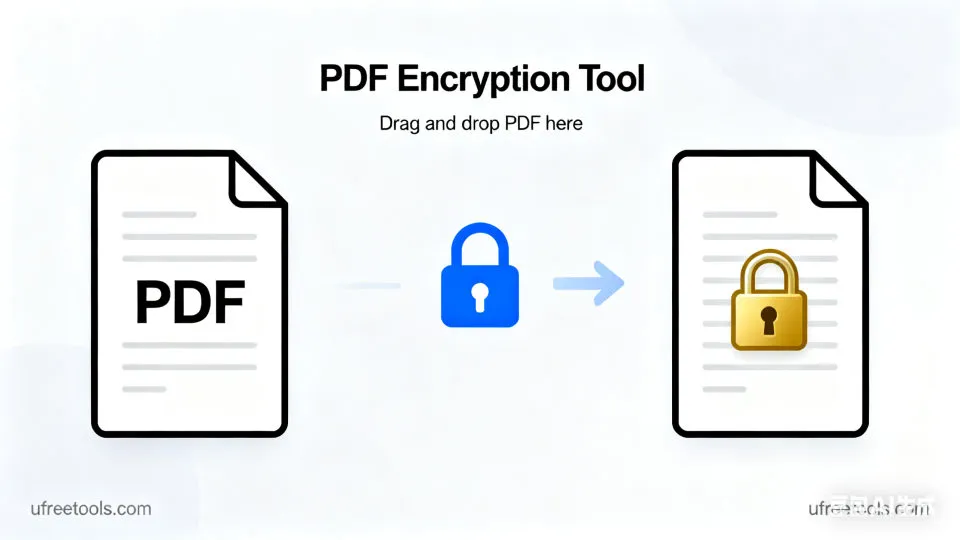
Our online PDF encryption tool uses a pure front-end open-source technology stack, supporting AES-128/AES-256 and RC4-40 encryption. It can set open passwords (user passwords) and permission passwords (owner passwords), while providing permission control options for printing, editing, copying, and form filling. It supports drag-and-drop upload, traditional multiple selection, URL batch import, and batch addition, offering real-time preview comparison and basic analysis to help you quickly verify encryption effects and permission configurations. After encryption, you can download individually or batch download as ZIP. All operations are performed locally in the browser without uploading to a server, ensuring privacy and efficiency.
Common Application Scenarios for PDF Encryption
- Setting open passwords and permission controls for enterprise shared documents
- Adding AES-256 high-security encryption to sensitive PDFs such as contracts and invoices
- Restricting printing and copying to prevent unauthorized distribution
- Setting low-resolution printing and limited editing for online training materials
- Batch encrypting PDFs and uniformly setting permissions
- Quickly encrypting and previewing encryption effects on mobile devices
- Local browser encryption without uploading to protect privacy
Professional Tips:
It is recommended to use <strong>strong passwords</strong> combined with <strong>AES-256</strong> encryption level for higher security; for better search performance, you can fill in titles and keywords in metadata and maintain consistent naming strategies (the current tool does not modify PDF metadata).
The online PDF encryption tool can quickly complete encryption and permission configuration in the browser, suitable for various scenarios such as enterprises, educational institutions, and individual users. By setting user passwords and owner passwords and selecting appropriate encryption algorithms, you can ensure security while maintaining good usability.
Frequently Asked Questions (FAQ)
Which encryption algorithms does the online PDF encryption tool support?
How to set open passwords (user passwords) and permission passwords (owner passwords)?
Does it support batch encryption and real-time preview comparison?
How to Use the Online PDF Encryption Tool
Add PDF Files
Upload via drag-and-drop or click to select files (supports multiple selection and batch addition); you can also paste multiple URLs at once in the "Batch Import Network PDF URLs" section.
It is recommended to first familiarize yourself with the process using sample PDFs.
Preview and Analysis
The tool will automatically render the first page of the original PDF and render the first page of the encrypted PDF for comparison after encryption is complete; to view permission effects, adjust in the left "Permission Control" section and re-encrypt.
If preview fails, the file may be corrupted or incompatible.
Set Passwords and Permissions
Set user password and owner password in "Password Protection" while viewing password strength hints; configure print, edit, copy, and form filling permissions in "Permission Control".
It is recommended to select AES-256 and use strong passwords.
Completed!
You have mastered how to use the online PDF encryption tool to set passwords and document permissions, and verified the encryption effect through preview comparison.
Related Tools You Might Be Interested In
PDF Merger
Combine multiple PDF files into a complete PDF document, supporting cross-file page reordering.
PDF Splitter
Split large PDF documents into multiple smaller PDF files, supporting custom split pages.
PDF to Word Converter
Convert PDF documents to editable Word format, preserving original layout and formatting.
PDF to Image Converter
Convert each page of a PDF document to high-quality image files, supporting multiple output formats.
Reference Resources
- QPDF Official
QPDF is a powerful PDF structural processing and encryption tool that provides rich permission control capabilities.
- PDF.js Documentation
PDF.js is an open-source library for rendering PDFs in browsers, suitable for preview and basic information retrieval.
- Adobe PDF Reference Specification
Adobe PDF reference documents provide PDF specification details and security-related definitions.